BabyCam - Baby Monitor Camera
- 4.5
- Rating
- 1.00M
- Installs
- Free
- Price

 Analysis by App-foxy
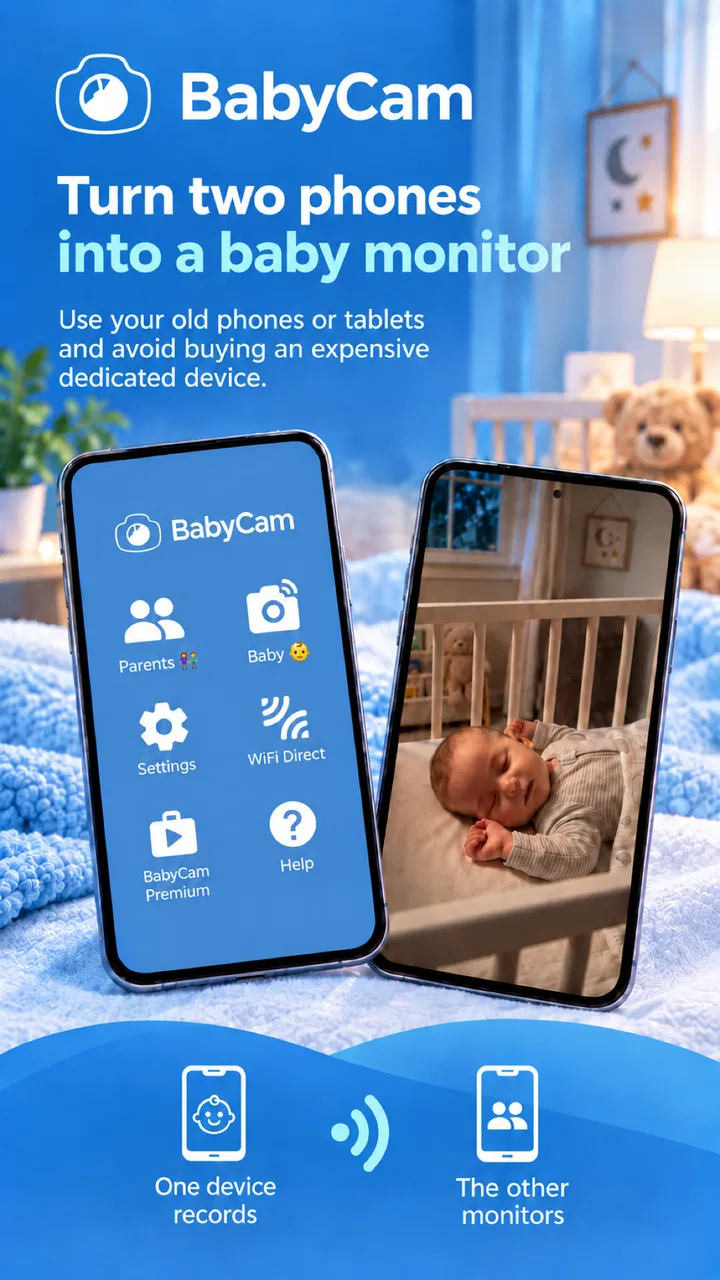
When I first looked at BabyCam, I saw a very focused parenting app rather than an attempt to replace every baby-care tool on a phone. Its basic idea is straightforward: use one mobile device as the camera and another screen as the viewer, with support for a phone, tablet, PC or TV. That can be genuinely useful when you need a quick way to keep an eye on a sleeping child without buying a dedicated monitor immediately.
My overall impression is that BabyCam is most valuable when convenience matters more than a complete nursery-monitoring system. It is free to install, aimed at Everyone, and comes from ArjonaSoftware. The app has been available since July 21, 2014, and its current version is 2.44, so it is not a brand-new experiment. At the same time, a long presence in an app store should not automatically be treated as proof that it suits every family or every privacy expectation.
It belongs in the parenting category, but I would describe it more narrowly as a practical baby monitor camera app. That distinction matters. A phone-based monitor can be convenient for travel, visiting relatives or occasional naps, while a dedicated camera may still be better for permanent installation, specialized sensors and a more predictable household setup.
You May Also Like

 Blood Strike: 2.5 Anniversary
Blood Strike’s Loadouts Turn Every Drop Into a Tactical Gamble
A close look at Blood Strike’s custom loadouts: how fast access to signature weapons reshapes its battle royale rhythm, rewards preparation, and narrows the gap between fights.

 Pandora - Music & Podcasts
Pandora’s Music Is Easy to Start, but Harder to Recover
Pandora’s strength is its low-effort path from a seed to a station. Its weak spot is how much confidence it asks you to place in connection, setup, and quiet recovery.

 8 Ball Pool
 Is Built on Rivalries, Rematches, and Routine
A close look at the rivalries, rematches, shared routines, and unanswered safety questions that turn a quick pool match into a persistent mobile community.

 Samsung Music
’s Quiet Strength Is Playing What You Already Own
Its reach comes less from spectacle than from dependable access to a personal library. That simplicity is both the app’s strongest retention engine and its ceiling.

 AccuWeather: Weather Radar
AccuWeather Review: A Quick, Clear Forecast for Everyday Decisions
For everyday plans, the best forecast is the one you can understand quickly. AccuWeather makes rain timing, radar, and local conditions easy to act on, with a few trade-offs.

 Hill Climb Racing
Why Hill Climb Racing Still Turns Crashes Into One More Run
A tiny car, a bumpy hill and one more upgrade: Hill Climb Racing keeps resurfacing because its simple chaos makes every near-miss feel personal.
More From Our News Desk



What using BabyCam feels like in everyday life
The most natural setup is to place an older phone or tablet near the crib and use your main phone as the viewing screen. This gives an unused device a useful second life and avoids carrying a separate monitor. The appeal becomes clear during a normal evening: your baby finally falls asleep, you move to another room, and you want to check the room without repeatedly opening the door. One device stays in position while the other remains with you.
I would prepare the arrangement before bedtime rather than trying to configure it while a tired baby is waiting. Charge both devices, choose stable surfaces, check that the camera has a clear view, and make sure the viewing device is receiving the picture before leaving the room. These small steps are more important than they sound because a phone balanced on furniture can be knocked over, and a camera angle that looks fine from the side may show very little of the sleeping area.
The ability to use a PC or TV as part of the viewing experience is particularly useful in a shared home. A larger screen can be easier to glance at from across a room, and a tablet may be more comfortable than a phone during a long nap. I would still treat the larger display as a convenience rather than a reason to leave the feed visible everywhere. A baby monitor can show more of your home than you intend, especially when the camera is pointed toward a doorway or a wider part of the room.
One practical advantage over a traditional monitor is flexibility. With a dedicated unit, the camera and receiver are usually tied to one product. With this app, a spare mobile device can become the camera, and another compatible screen can act as the viewer. That is helpful for grandparents, travel or a temporary sleeping arrangement. The trade-off is that you are also responsible for the condition, battery, placement and connectivity of those devices.
Where the simple approach works best
BabyCam makes the most sense for occasional monitoring, a second room, a holiday visit or parents who already have spare devices. It can also be a sensible trial before spending money on a dedicated camera. Since the app itself is free, the initial barrier is low, although in-app purchases are listed at $3.49 per item. I would check the visible purchase choices inside the app before relying on any paid option, especially if you only need a basic temporary arrangement.
It is less convincing as the sole monitoring solution for a family that wants a permanent nursery installation. A dedicated baby monitor usually keeps its role clear: one camera, one receiver, and controls designed around that purpose. A phone-based arrangement introduces extra decisions about notifications, calls, charging, screen settings, network access and who can see the device. Those details do not make the app unusable, but they do make the setup more dependent on the household’s habits.
Another useful distinction is between checking and supervising. I would use this kind of app to look in on a sleeping child, not as a substitute for being nearby when a baby needs immediate attention. A screen image can help you decide whether to enter the room, but it cannot replace physical supervision or guarantee that every important sound or movement will be noticed.
Trust begins with the devices around it
For a parenting app, trust is not only about the developer’s name or the number of downloads. BabyCam has a 4.4 average from around 30,000 ratings, and it has passed one million installs, which suggests that many people have found the basic concept useful. Those figures are helpful context, but they do not answer the questions I would ask before placing a camera in a child’s room.
I would first look at the permission prompts and the choices shown during setup. The camera device obviously needs access to its camera to transmit an image, but I would pay attention to every request rather than approving everything automatically. If a permission is not needed for the way I plan to use the app, I would prefer to deny it and see whether the core monitor still works.
I would also check whether the app lets me stop the camera session clearly when monitoring is finished. A visible stop action is important because a child’s room should not remain observable simply because an earlier session was forgotten. I would close the session before lending the viewing phone to someone else, before switching to a different family member, and before moving the camera device to another room.
The same caution applies to the screens that can display the feed. A TV or computer may be convenient, but it can also be located in a room where visitors, children or other household members can see it. I would avoid leaving the viewing screen open when nobody is actively watching. This is a simple habit, yet it gives me more control than treating the feed as harmless background content.
Privacy-sensitive moments deserve a deliberate routine
The camera’s position determines how much private information it captures. Pointing it directly at the crib gives a narrower view than pointing it across the whole nursery. I prefer the narrowest useful composition: enough to see the sleeping area, but not so much that the camera includes changing areas, family conversations or unrelated parts of the home.
Travel creates another sensitive situation. At home, I know which devices are mine and who shares the network. In a hotel, rental property or a relative’s house, the environment is different. I would avoid leaving the camera running after the child wakes, and I would be especially careful about using shared screens. A temporary monitor should remain temporary, with the session ended and the devices returned to their normal use afterward.
Calls and other interruptions are worth considering before relying on a phone as the camera. The camera device is still a general-purpose mobile device, not a single-purpose monitor. I would put it in a stable position, make sure it has enough battery, and reduce anything that could interrupt or distract from the monitoring session. I would also test the arrangement during the day rather than discovering a problem after bedtime.
One of the less obvious trade-offs is sound and attention. If the viewer is left beside you for hours, you may start treating every small change as an alert, even when the app is simply showing a live view. Conversely, if the phone is muted or the screen is too far away, you may miss something you expected to notice. I would decide in advance whether I am actively watching, checking periodically, or using the feed only as a visual confirmation. The app is easier to use responsibly when that purpose is clear.
Controls, accounts and personal agency
I value apps that let me make practical choices without forcing a complicated account structure. With BabyCam, I would examine the setup screens for any account requirement, sign-in step or sharing control before connecting the devices. If an account is optional, I would avoid creating one for a short-term use case. If the app presents a way to disconnect devices or end a session, I would use it rather than assuming that closing the screen is enough.
I would also review the app’s visible settings after installation, not only during the first launch. Permission controls can be revisited through the phone’s operating-system settings, and I would use those controls when I am finished with monitoring. Removing camera access from a device that is no longer being used as a baby monitor is a straightforward way to restore the phone to its ordinary role.
Families often share responsibilities, so the viewing device may pass between parents or relatives. Before giving someone else access, I would explain which device is acting as the camera, which one is receiving the image, and how to stop the session. That small handover prevents a common mistake: one person believes monitoring has ended while another person still has the viewer open.
The app’s Everyone content rating makes it broadly accessible from a store perspective, but the subject matter is still sensitive. A child’s image deserves more care than an ordinary video feed. I would not treat the age rating as a privacy recommendation, and I would not install it on a device that is shared widely unless I was comfortable with the device’s existing lock and notification habits.
How it compares with the usual alternatives
The usual alternative is a dedicated baby monitor. That option is often better for a fixed nursery because it keeps the camera, receiver and charging routine together. It may also feel easier for another caregiver who does not want to manage an app connection. BabyCam wins when I already own suitable devices and want flexibility, especially away from home or for occasional use.
A second alternative is a general home-security camera. That may offer a broader surveillance feature set, but it can be excessive for a simple nap check. A parenting-focused app feels more directly aligned with the task, while a security camera may introduce a wider set of account, household and remote-access decisions. I would choose the simpler tool when I only need a temporary visual link and the setup gives me clear control over who can view it.
There is also the no-app alternative: taking turns checking in person. For a short nap, that can be perfectly adequate and avoids placing another camera in the room. BabyCam is useful when the room is farther away, when a child is settling after a move or when a caregiver needs to remain available elsewhere. It should add convenience, not create the impression that a screen can replace attentive care.
Small setup choices that make a big difference
My first recommendation is to test the complete route from camera to viewer before the app becomes necessary. Do not test only whether the camera opens; confirm that the second device receives the image, that the chosen viewing position is comfortable, and that the connection remains usable while you move around the home. This catches problems with placement and device readiness early.
My second recommendation is to use a dedicated spare device when possible. A phone that receives calls, messages and work notifications is a poor camera because interruptions are more likely. A spare device also makes it easier to leave the setup in place for a short period without disturbing your main phone. I would still check its battery and keep it away from the crib, cables and anything a child could reach.
Third, keep the camera view intentionally narrow. This is both a privacy measure and a practical one: a tighter view makes it easier to understand what you are looking at. If the child moves outside the frame, adjust the placement rather than automatically widening the view to include the entire room.
Finally, create an end-of-session habit. Stop the feed, close the viewer, and review camera access on devices that are no longer being used for monitoring. This takes little time and prevents a temporary parenting arrangement from becoming an unnoticed permanent camera.
Who should choose it, and who should skip it
I would recommend BabyCam to parents who want a low-cost way to reuse a phone or tablet, families who need occasional monitoring, and caregivers who appreciate the option of viewing on a larger screen. It is also a reasonable choice for someone who wants to test the idea of app-based monitoring before purchasing dedicated equipment.
I would skip it if I need a purpose-built system that can remain installed with minimal maintenance, or if I do not want to manage permissions, device charging and session control. I would also choose a different option if the household needs specialized monitoring hardware rather than a general camera feed. The app’s convenience depends on the devices and routines around it, so it is not automatically the simplest solution for every nursery.
After using the concept in the way I would use it at home, I see BabyCam as a useful practical tool with a clear boundary. Its strongest quality is flexibility: a spare mobile device can become part of a monitoring setup, and the viewer can be a phone, tablet, PC or TV. Its main weakness is that this flexibility shifts responsibility to me. I have to place the camera carefully, protect access, watch the permissions, manage interruptions and end each session deliberately.
That makes my verdict cautious but positive. BabyCam is worth trying when I need an occasional baby monitor and already have compatible devices. I would not treat its free availability, broad age rating, user popularity or long history as a substitute for checking the controls myself. Used with a narrow camera view, a prepared spare device and a firm stop-at-the-end routine, it can be a convenient addition to everyday parenting. If I wanted a permanent, dedicated nursery system with fewer moving parts, I would look elsewhere.
FAQs for BabyCam - Baby Monitor Camera
01What is BabyCam - Baby Monitor Camera and how does it work?
BabyCam is an app designed to help parents monitor their baby remotely using their smartphone or tablet. By connecting two devices via Wi-Fi, one acts as the camera in the baby's room while the other serves as the monitor. This allows parents to check on their baby in real-time, ensuring safety and peace of mind.
02Is BabyCam - Baby Monitor Camera secure to use?
Yes, BabyCam prioritizes user security by using encrypted connections between devices. This ensures that only authorized users can access the video feed. It’s important to use a strong Wi-Fi password to further enhance security and prevent unauthorized access to the network where the app is used.
03Do I need any special equipment to use BabyCam - Baby Monitor Camera?
No special equipment is needed beyond two compatible devices, such as smartphones or tablets. One device will serve as the camera placed in the baby’s room, while the other will be used as the monitor. Ensure both devices have the app installed and are connected to the same Wi-Fi network for optimal performance.
04Can I use BabyCam - Baby Monitor Camera on both Android and iOS devices?
Yes, BabyCam is compatible with both Android and iOS devices. This cross-platform capability allows users to mix and match devices, using an Android phone as the camera and an iOS device as the monitor, or vice versa. Ensure both devices meet the app’s system requirements for smooth operation.
05What features does BabyCam - Baby Monitor Camera offer to enhance monitoring?
BabyCam includes features like two-way audio communication, night vision support, and real-time video streaming. Parents can talk to their baby through the app, even in low-light conditions. Additionally, the app can send notifications for sound or motion detection, keeping parents informed of any activity in the baby’s room.
Pros
- Easy setup with minimal configuration.
- High-quality video streaming.
- Two-way audio communication.
- Works on both Wi-Fi and mobile data.
- Free with no hidden costs.
Cons
- Limited features on the free version.
- Requires stable internet connection.
- Occasional audio lag.
- No night vision feature.
- Consumes significant battery life.

BabyCam - Baby Monitor Camera
Gallery